LIVE FROM MADISON SQUARE GARDEN!
7:05PM EST
TWITCH.TV/OCWFED
YOUTUBE.COM/OCWFEDTV
MAIN EVENT
CHAMPION vs. CHAMPION
PICK YOUR POISON
MAD DAWG DAVIS* vs. LPM*
HELLO HONNESS MY OLD FRIEND
ALEKSANDER BOLEK
vs.
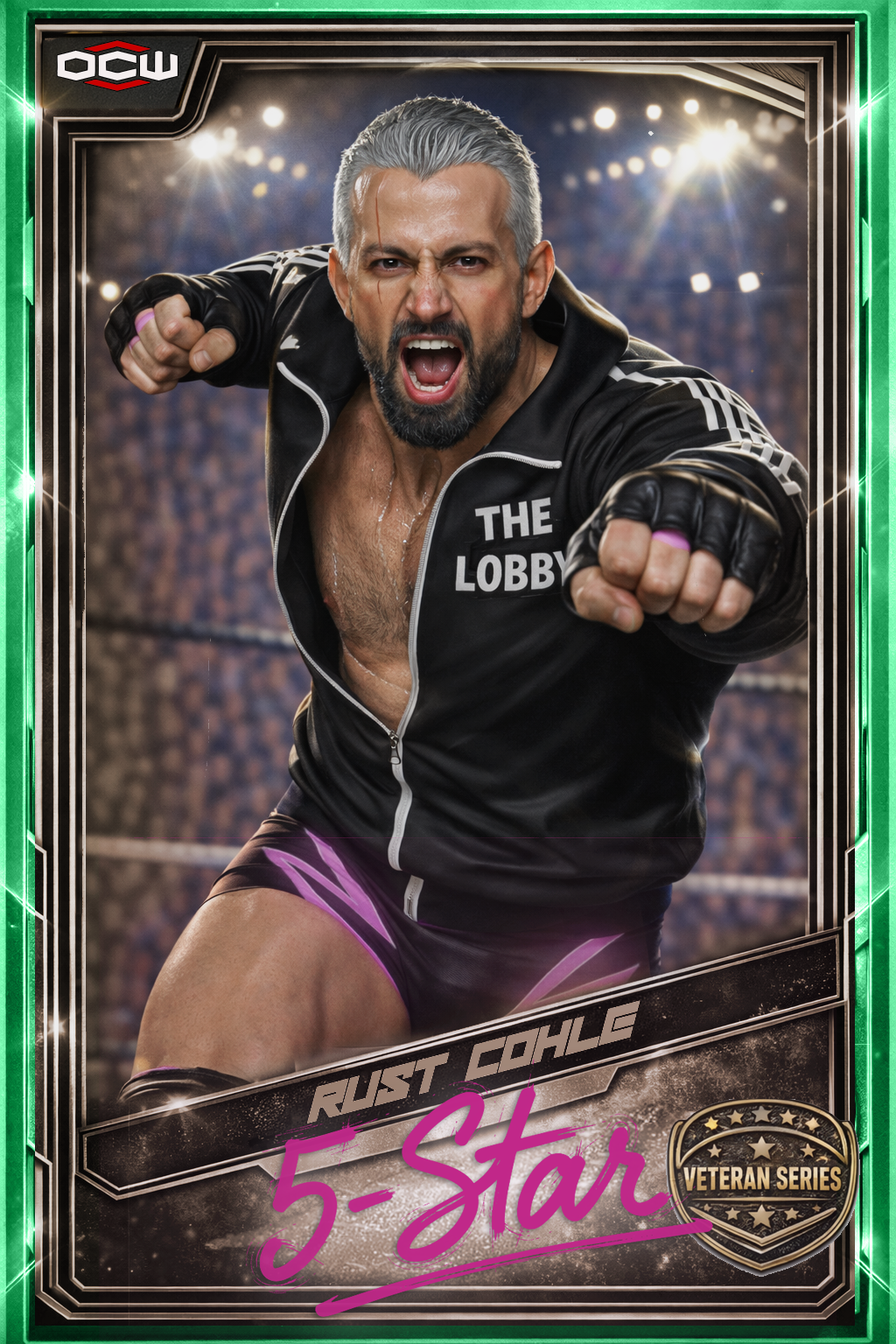
RUST COHLE
CANADA
SUGA SHANE vs. H20
FEAT: LAZY LARRY MUGEN
TAG TEAM TURMOIL
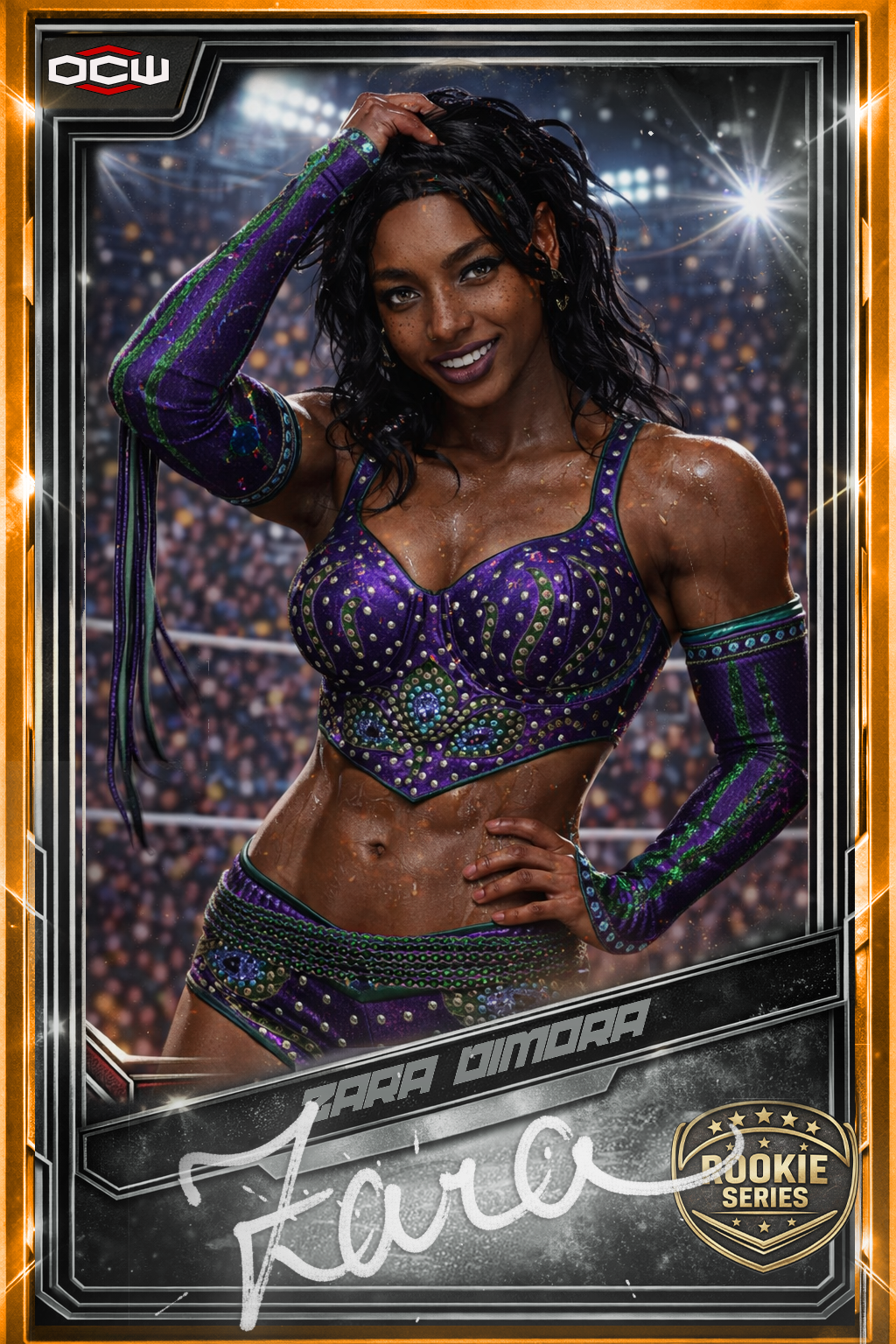
ZARA DIMORA & MEGAN SUZUKI
vs.
ASHLEY MOORE & LORETTA MARCEAUX
LOL DIE
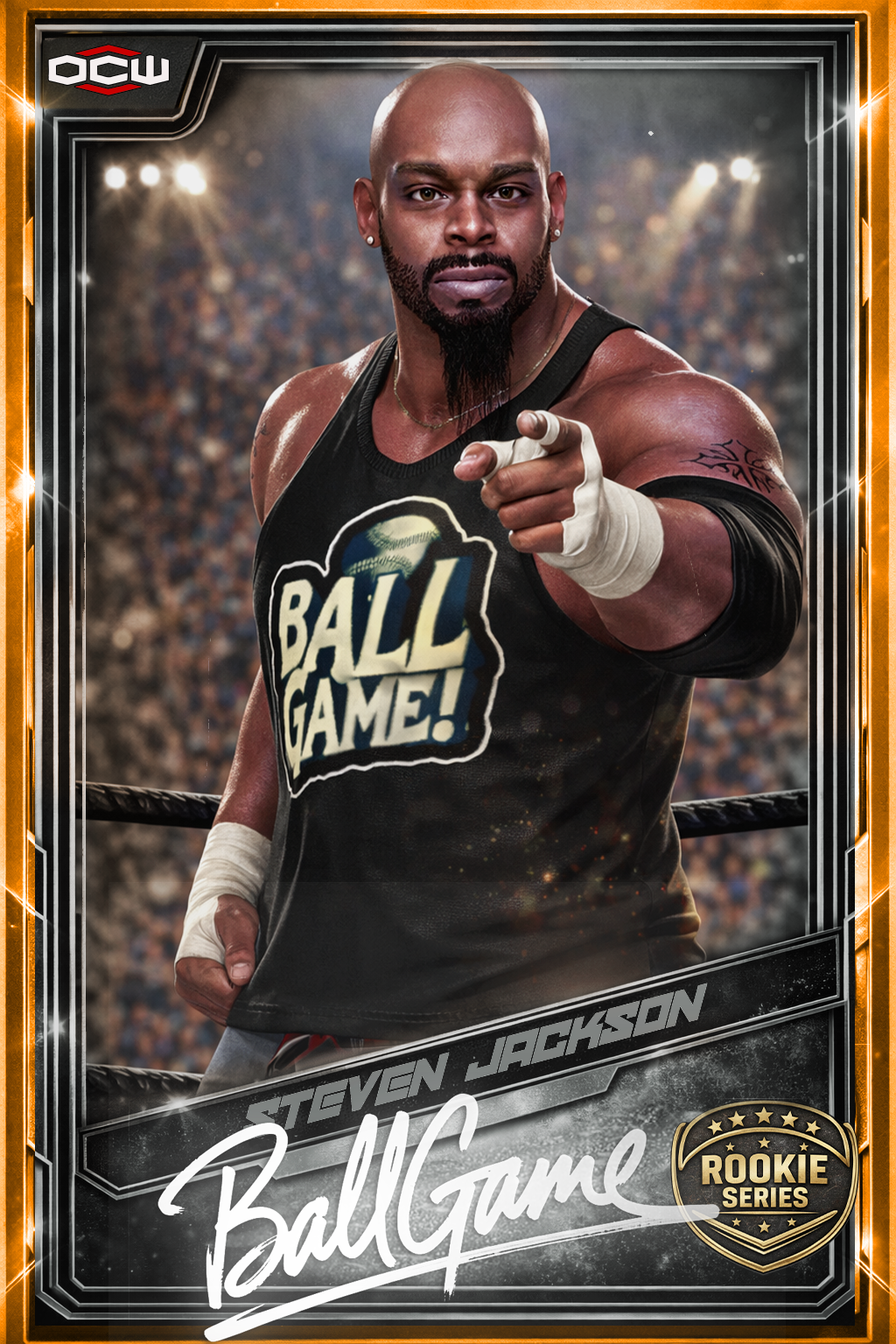
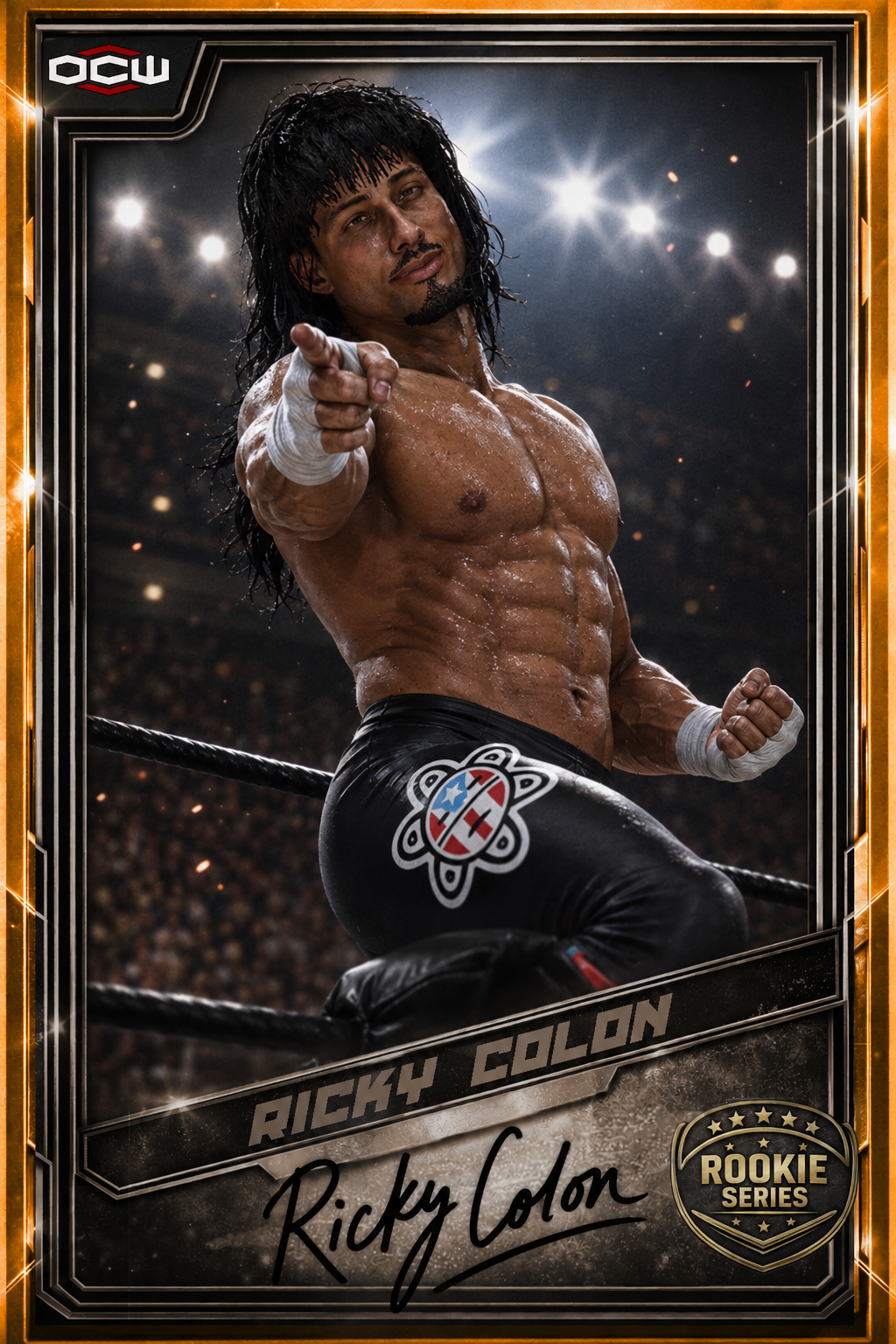
RICKY COLON vs. STEVEN JACKSON
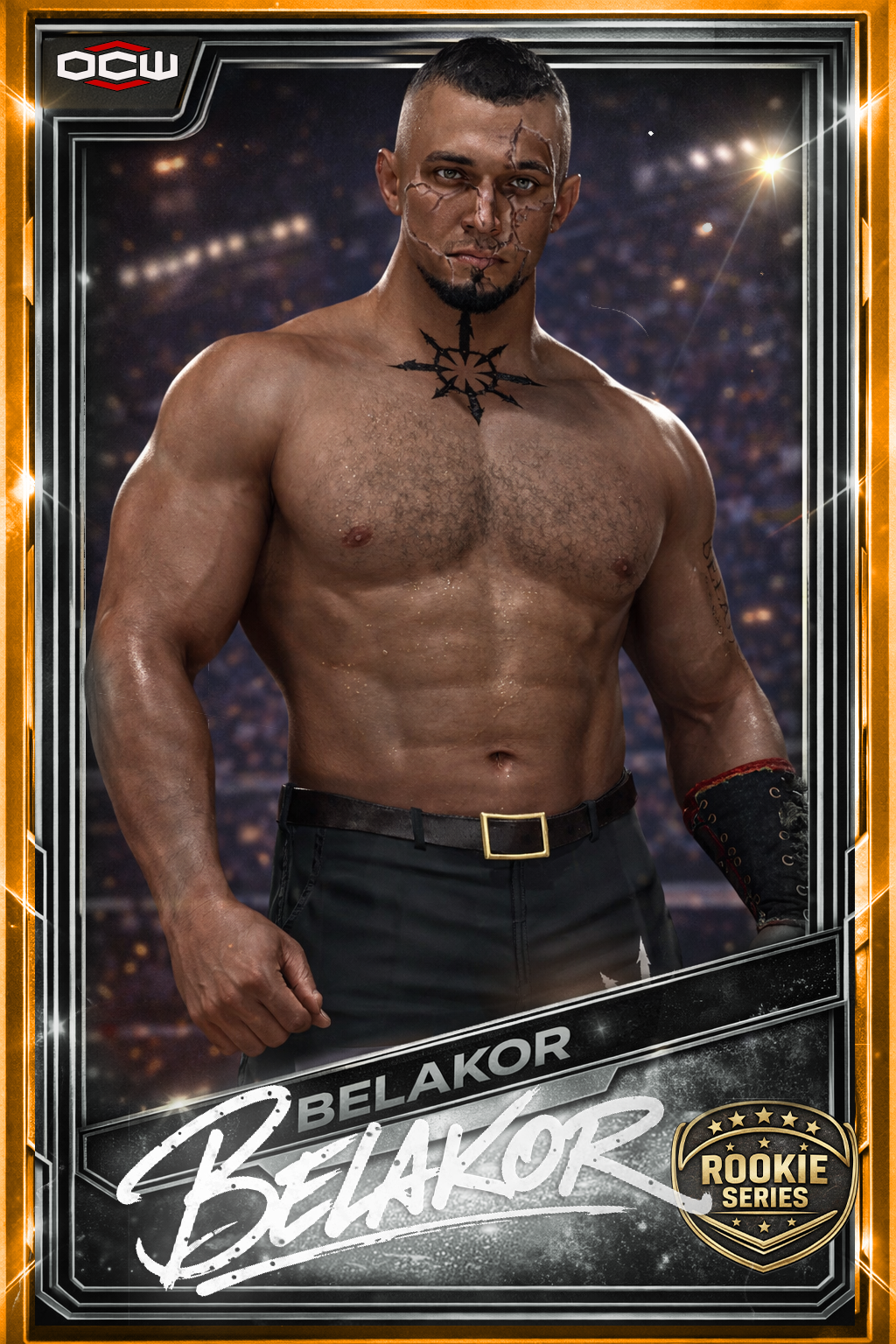
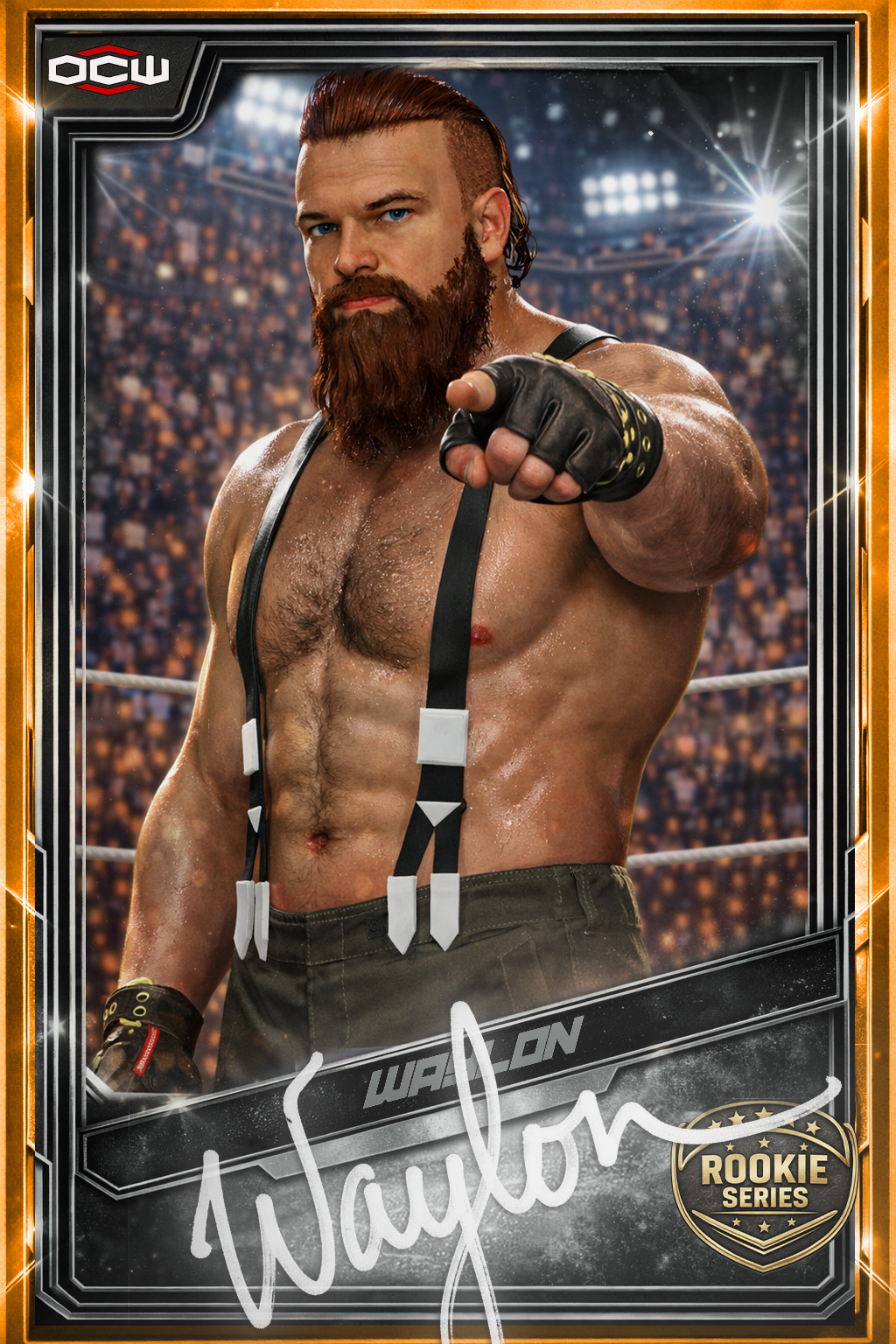
ROOKIE DEBUT
MO JAE vs. TRAVIS RYDER
ALL MATCHES ENTRANCES RPS AND SEGMENTS MUST USE
OCW RIOT SEASON 21 SHOW
(DOWNLOAD THE UPDATED SHOW NOT THE ARENA)
*UPLOAD YOUR CURRENT CAW FOR RECORDER*
*****TURN OFF In Game Commentary******
****TURN OFF IN GAME Entrance MUSIC****
*CUSTOM MATCH SOUNDTRACKS ARE ALLOWED*
**MATCHES MISSING ENTRANCES WILL NOT BE USED**
***BEST POSSIBLE VIDEO FIDELITY***
*FPR ISSUES OR POOR MATCHES WILL NOT BE USED*
****ABSOLUTELY NO YOUTUBE SUBMISSIONS****
***ROOKIES FEEL FREE TO SUBMIT VIDEO CONTENT***
FILE RESOLUTION 720 or 1080P
File Size: 600 - 1.1GIG
File Type .MP4 NO EXCEPTIONS!!!!
ALL ROOKIES IF YOU ARE NOT BOOKED YOU ARE ENCOURAGED TO SUBMIT CONTENT
MAIN EVENT DEADLINE WEDNESDAY OCTOBER 7TH 5:30PM EST
RP & VIDEO Deadline WEDNESDAY OCTOBER 7TH 5:30PM EST
Matches ARE SENT TO THE RIOT SUBMISSION FORUM
GOOD LUCK
HAVE FUN
09 October 2026 11:05 PM